



Security FAQs
Dynadot takes your account security seriously. Therefore, we provide multiple required and optional layers of security to help protect your account:
1. The first layer of security is your login credentials. We kindly advise you not to share them with anyone; if you wish to grant restricted access to your account, please note that we offer a sub-account option.
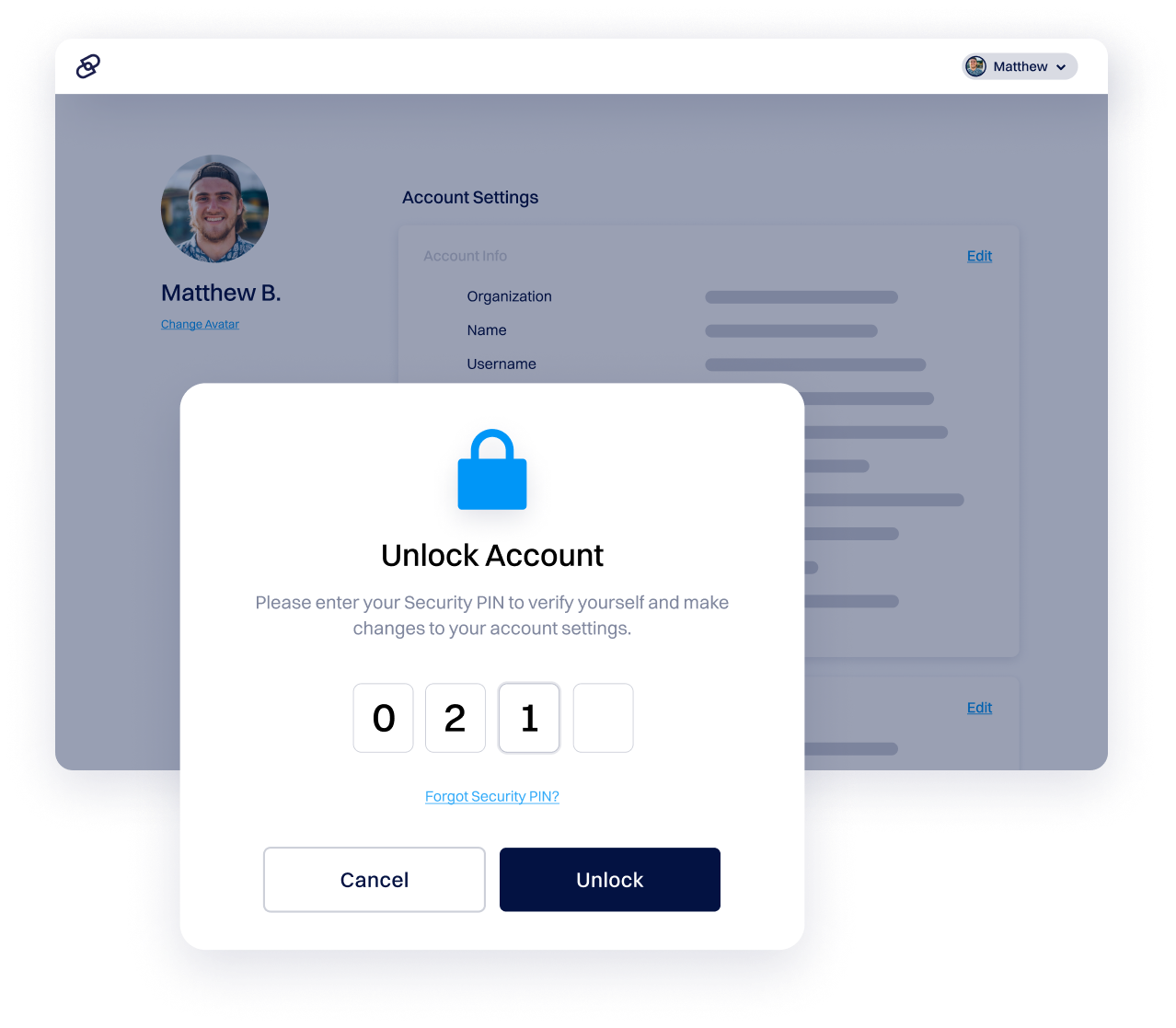
2. When you first log in, you are asked to set up three secret question-and-answer combinations along with a four-digit security PIN. This PIN is used for certain account functions, such as editing your account information and unlocking your domains. If you forget your security PIN, you will need to submit a request to reset it, and to do so, you must provide the answer to one of your secret questions. If you enter an incorrect answer, you may be able to try a backup question after waiting for an email from Dynadot.
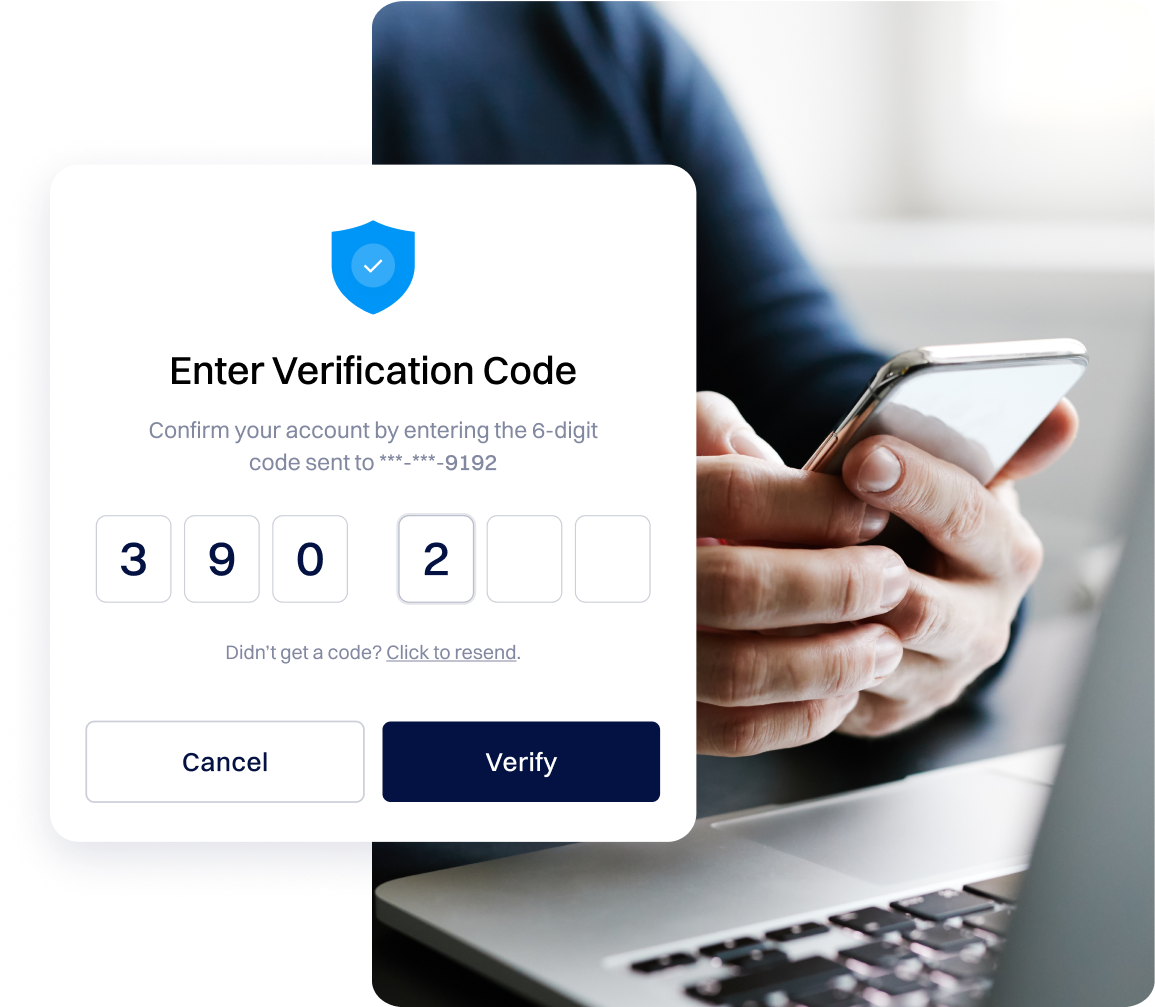
3. For additional protection, you may enable Google Authenticator and/or SMS Authenticator on your account. If you ever lose access to your phone or authenticator app, you can submit a Lost Cellphone request, which functions similarly to the Reset Security PIN request mentioned above. If you provide the correct secret answer, your two-factor authentication (2FA) settings will be reset.
4. Lastly, you can purchase our Registry Lock, an advanced security feature that protects your domain at the Registry level.
The only way to secure a domain name is to register it before someone else does or purchase it from the current owner. Domain ownership is assigned on a first-come, first-served basis through a registrar. Once registered, the domain remains under your control as long as it is renewed.
Businesses typically protect their domains by enabling auto-renew to prevent accidental expiration.
Whois privacy protects your personal information by hiding your name, address, phone number, and email from the public Whois database.
By enabling Whois privacy, you reduce spam, phishing attempts, and unwanted contact, while still remaining reachable. This helps protect your identity and enhances security without affecting domain ownership or functionality.
Domain privacy protects your personal data by replacing your real contact details in the public Whois database with Dynadot's proxy information. When someone looks up your domain, they see our privacy service information instead of your name, address, email, and phone number.
Legitimate emails still reach you through secure forwarding that blocks spam and phishing, keeping you protected from identity theft and unsolicited marketing without affecting your website or email services.
Most popular TLDs support it, while some country code top-level domains (ccTLDs) do not. Check the TLD prices page for more information on which domain extensions include domain privacy.
A Security PIN adds another layer of security to your account. While your username and password allow you to log in to your account, this PIN is used for certain account functions such as editing your account information and unlocking your domains. This ensures that if someone were to gain unauthorized access to your account, they wouldn't be able to irreversibly damage your business, by, for example, transferring or deleting your domains.
For even more protection, you can also enable Google Authenticator and/or SMS Authenticator on your account. For more information, please check this article. If you want bulletproof security for your domain, you may even consider our Registry Lock service.
You can secure your Dynadot account with two-factor authentication (2FA) by following these steps:
1. Install a two-factor authenticator app on your phone, such as Google Authenticator, Microsoft Authenticator, Authy, or Duo Mobile.
2. Sign in to your Dynadot account.
3. From the left-side menu, select "My Info", then choose "Security".
4. Click “Enable Two-Factor Authenticator” and unlock your account if prompted.
5. Open your authenticator app and tap the “+” icon to add your Dynadot account.
6. Scan the QR code displayed on Dynadot or enter the setup key manually.
7. Your account will appear in the app as Dynadot: username.
8. Enter the one-time token generated by the app into the "Generate a Token" field and click "Enable Token" to complete setup.
You can enable SMS authentication by following these steps:
1. Sign in to your Dynadot account.
2. Select Security from the "My Info" drop-down menu.
3. Unlock your account using the button at the top of the page.
4. Under "SMS Authentication", enter in your cellphone number (country code in the first box, full phone number in the second box).
5. Click on the "SMS Phone Number" button.
6. Next, click on the "Get SMS Token" button. A 6-digit code will be sent to your cellphone number to ensure you have access to the cellphone number you entered. This test code will expire 1 hour after it is sent.
7. Enter in the SMS test code in the "Enter Token" box.
8. Click on the "Enable SMS" button to save your changes.
9. If the correct test code is entered, your SMS settings will be saved for your account.
You can unlock your Dynadot account by following these steps:
1. Sign in to your Dynadot account.
2. Select "My Info" from the left-side menu bar then Security from the drop-down.
3. On the "Security Settings" page, click the Unlock Account button.
4. To unlock your account, you must enter your security PIN, which is a 4-digit number specified when you create your Dynadot account. If you forgot your security PIN, you can visit the 'My Info' section in your Dynadot account control panel to reset it.
5. If you have Google Authenticator and/or SMS authorized for your account, you will also need to enter your token code (Google Authenticator) and/or SMS code.
6. Click on the "Unlock Account" button.
You can unlock a domain from your Dynadot account by following these steps:
1. Sign in to your Dynadot account.
2. Select "My Domains" from the left-side menu bar and click "Manage Domains" in the drop-down.
3. Check the box next to the domain name(s) you want to unlock.
4. Select "Unlock Domains" from the "Bulk Action" drop-down menu.
5. If your account is locked, you will be prompted to unlock your account before proceeding.
6. Unlocking your account will require you to enter your "security PIN" (as well as a Token Code if you have set up Google Authenticator and/or an SMS Code if you have SMS Authentication set up).
7. After entering the necessary information to unlock your account, click the "Unlock Account" button. This will take you back to the "Manage Domains" page where you can make your domain selection(s) again.
8. Click the "Unlock Domains" button to unlock your domain(s).
A Registry Lock service helps protect your domain from hijacking and unauthorized changes, which are becoming more common as attack methods grow more sophisticated.
While Dynadot includes a free security package to safeguard your domains, Registry Lock provides an additional, high-level layer of protection for your most valuable domain names.
When enabled, critical actions such as transfers or DNS changes require manual verification at the registry level. Registry Lock is currently available for .COM, .NET, and .CC domains, with support for more TLDs planned. Read more about Registry Lock service from this article.
Registry Lock operates at the registry level and enhances security by strengthening the authentication process between the registry and the registrar, requiring additional verification steps from the user, Registrar, and registry whenever the lock is enabled or disabled.
To add Registry Lock to a domain in your Dynadot account, follow these steps:
1. Sign in and go to “My Domains” from the left-side menu
2. Select “Manage Domains” from the drop-down menu.
3. In the “Domains” column, click on the domain name you want to secure, scroll to the bottom of the page to find the “Registry Lock” section.
4. If your account is locked, click “Unlock Account” to unlock it first.
5. Once unlocked, click the “Upgrade” button, proceed to your shopping cart, and follow the checkout steps to complete your order.
6. You can also add or renew Registry Lock directly from your shopping cart if there is already a renewal item for the same domain.
After the process is completed, the “Registry Lock” section will update, allowing you to enable or disable the lock from the domain's page. Please note, the processing time for enabling or disabling Registry Lock is typically 3-5 business days.
The time required for processing: including, changing statuses, or removing domains or hosts under the Registry Lock Service depends on the quantity submitted. Registrars planning to place 2,500 or more domains or hosts under this service need to notify Verisign three business days in advance.
The Customer Support team is dedicated to facilitating this process efficiently.
To permanently remove a domain name or host from the Registry Lock Service, the following steps must be completed:
1. An authorized individual designated during onboarding submits an email request to Verisign to remove domain names or hosts from the Registry Lock Service, whether they are currently locked or unlocked for changes.
2. The authorized individual contacts Verisign via phone, states their security phrase and confirms the email request's contents.
3. Once unlocked and removed from the Registry Lock Service, Verisign sends confirmation via email to the authorized individual who initiated the request.
No. Domain privacy hides your personal contact details from the public WHOIS database, not from lawful authorities.
If a valid legal request is made by law enforcement, courts, or regulatory bodies, Dynadot may be required to disclose the underlying registrant information in accordance with applicable laws and ICANN policies. Domain privacy is designed to reduce spam, harassment, and data scraping, not to provide legal anonymity.
If domain privacy is disabled or no longer applied, your registrant contact details become publicly visible in WHOIS records.
This typically includes your name, organization (if provided), email address, phone number, and physical address, depending on the TLD and registry rules. Changes to WHOIS visibility may take some time to propagate due to registry update cycles.
Yes. Domain privacy is independent of where your DNS or hosting is managed.
You can enable WHOIS privacy at Dynadot while using:
- Third-party DNS providers
- External web hosting services
- Custom nameservers
Domain privacy only affects WHOIS data visibility and does not interfere with DNS resolution or hosting configurations.
Yes. Registry lock adds an additional layer of protection that intentionally restricts certain actions.
When a domain is under registry lock:
- transfers require manual verification and approval
- Changes to nameservers or registrant details may be restricted
- Additional authentication steps are required to make updates
This is by design and helps protect high-value domains from unauthorized changes or hijacking.
Account-level security protects access to your Dynadot account, while domain-level security protects individual domains.
Examples:
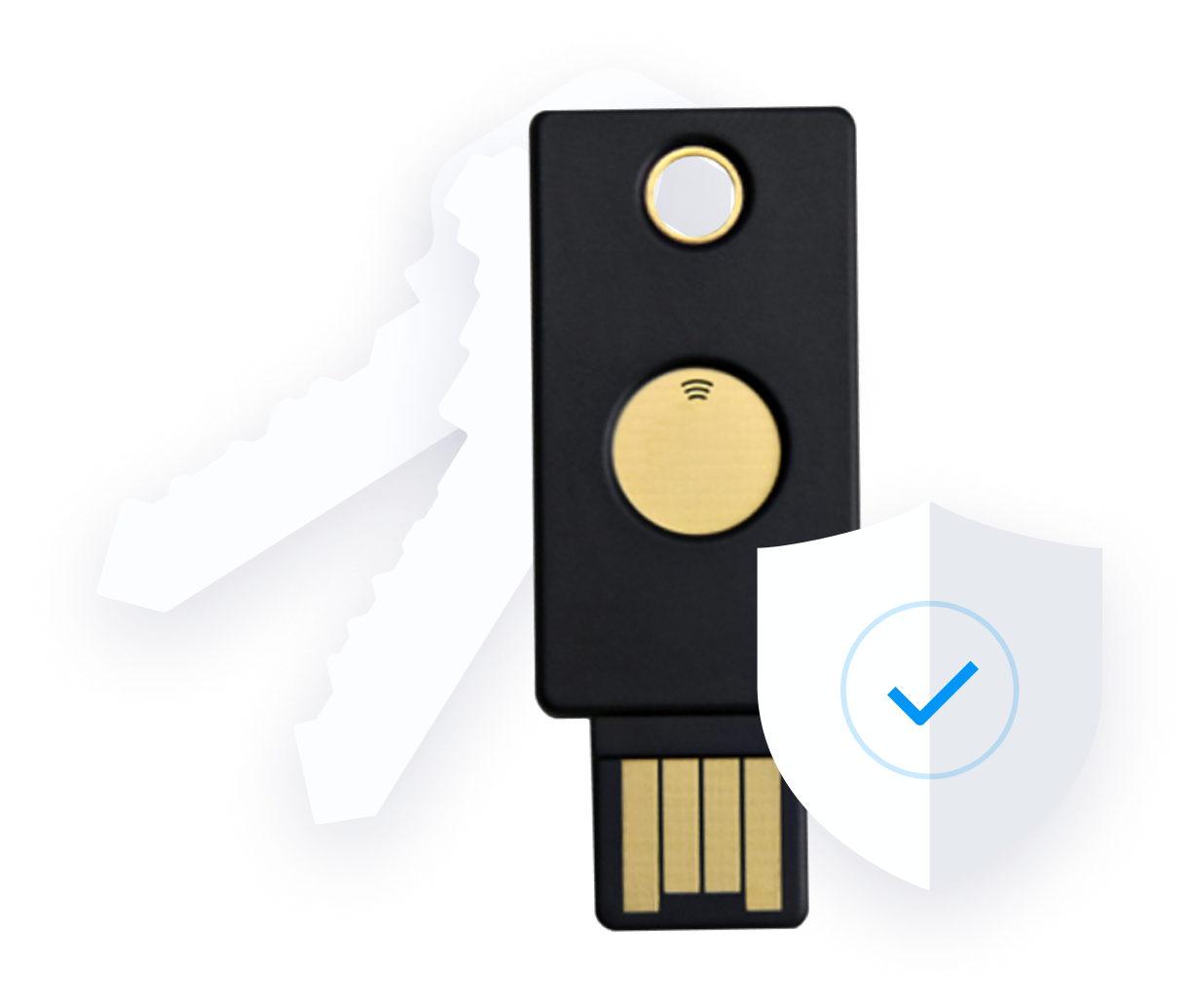
- Account-level security: two-factor authentication, security keys, account lock
- Domain-level security: registrar lock, registry lock, WHOIS privacy
Using both together provides layered protection. Even if someone gains access to your account, domain-level locks can still prevent unauthorized domain changes.